Do you need my Facebook password?
No. PostScheduling never asks for your Facebook password or two-factor authentication code. You connect Pages by logging in through Facebook's own login screen and approving the specific permissions PostScheduling requests.
Do you store my access tokens?
The User Access Token used to discover your Pages is processed for that request and is not intentionally persisted. Page Access Tokens are required for later scheduling and management, so they are encrypted before storage. The encryption key is kept separately as a Cloudflare Worker Secret. Tokens are decrypted inside the Worker only when performing a scheduling, rescheduling or cancellation action you requested.
Can the service use my Page token?
A Page token is technically what allows the service to make the specific Meta API calls you authorize, so it must be usable by the backend to schedule on your behalf. It is never shown back in the dashboard or intentionally logged, and it is not used for unrelated actions. We never receive your Facebook password or 2FA code.
How do I connect my Facebook Pages?
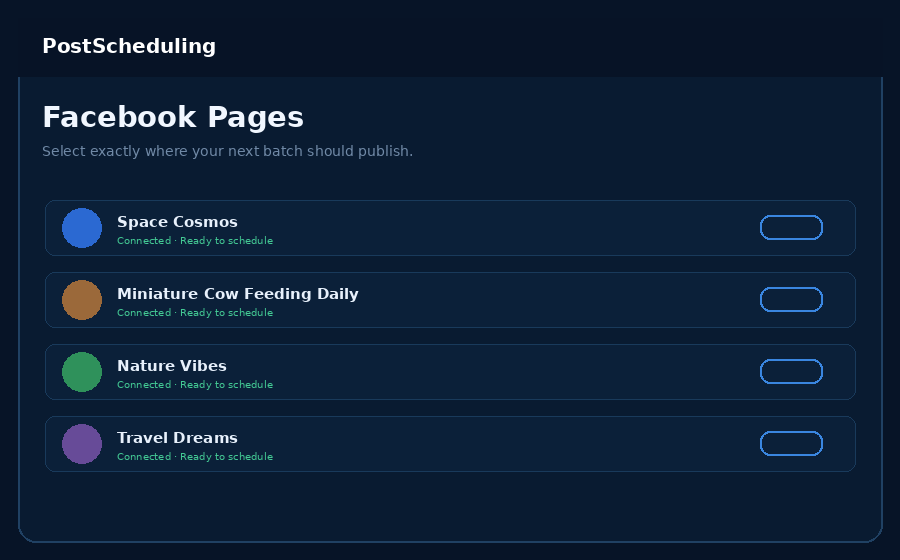
Click Continue with Facebook inside the dashboard, sign in on Facebook's own screen, and choose which Page(s) to share. There's also an advanced manual-token option in Connect Pages if you ever need it for troubleshooting.
Do I need to put image paths or filenames in a CSV?
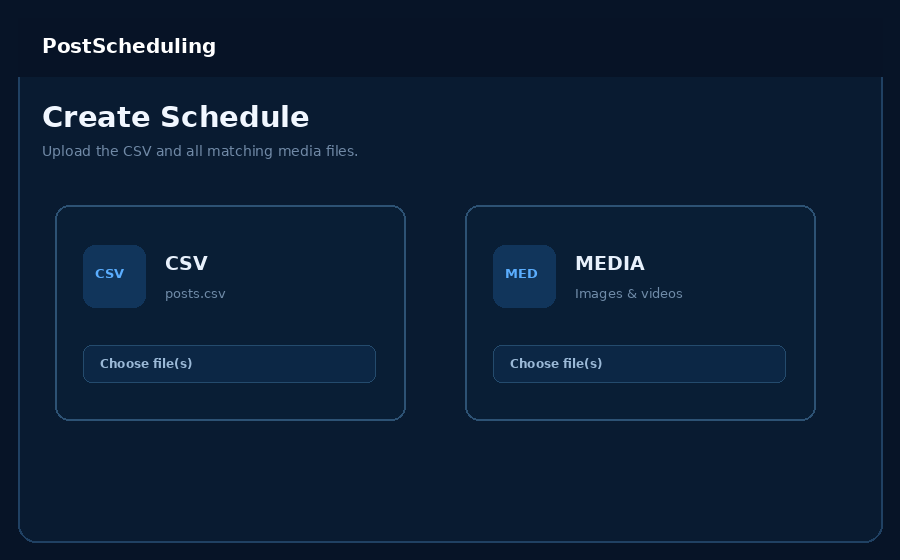
No. Easy Builder and Manual Builder use the media files you select and create the schedule rows automatically. CSV Upload is an optional power workflow for people who already prepare their batches in a spreadsheet.
What makes this a bulk scheduler?
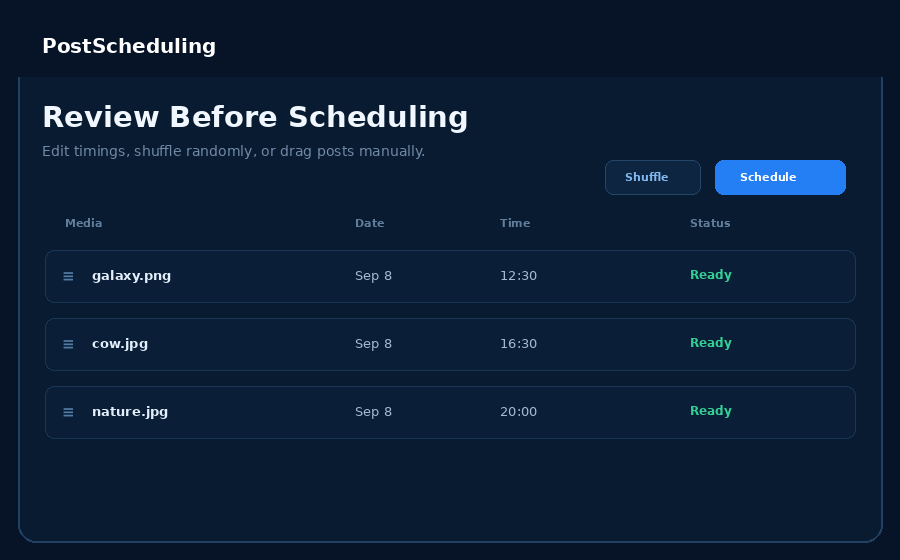
You can select an entire media batch at once, generate spaced schedule times automatically, preview and edit every row, then queue the validated batch together. Prepared CSV imports are also supported.
Can I connect multiple Pages?
Yes. Bulk scheduling is the main workflow, and you can apply that workflow to more than one connected Facebook Page when needed.
Which post types are supported?
The current scheduler supports Facebook Page photo posts, Reels/video posts and text posts.
Why might API-scheduled posts not appear in Meta Business Suite Planner?
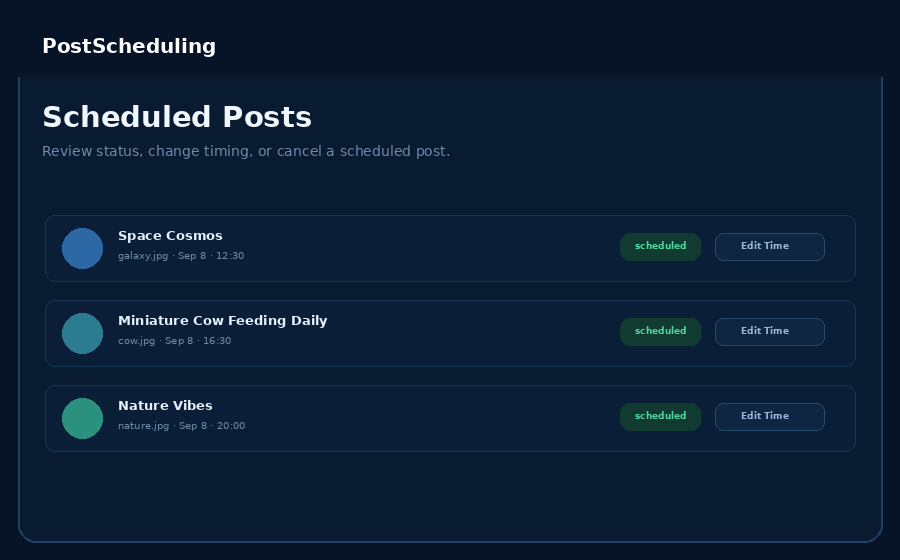
Meta can treat API-created scheduled objects differently in its Business Suite interface. PostScheduling includes its own scheduled-post area and can query Facebook's API for confirmed scheduled objects.
What happens if I create a new Facebook Page later?
Open Connect Pages and click Continue with Facebook again. Your Page list is refreshed and the new Page appears in the dashboard.